Skip to navigation Skip to content
MAPTATTOO
  • Shop
  • News
  • Charts
  • About Us
  • My account
  • Shop
  • News
  • Charts
  • About Us
  • Cart
  • My Account
  • $0.00 0 items
Home / Documentation / Connecting MAPTATTOO

User Manual

  • Introduction
  • Getting Started
  • Search Function
  • “Fast Forward” Mode
  • Route Functions
  • Info & Trip Banner
  • Tide & Current Predictions
  • Connecting MAPTATTOO
  • Preparing and loading Routes at home
  • Downloading your tracks
  • Installing new Charts
  • Updating the firmware
  • Adjusting MAPTATTOO settings
  • MAPTATTOO Gateway
  • Troubleshooting
  • Release Notes
View Categories
  • Home
  • Documentation
  • User Manual
  • Connecting MAPTATTOO

Connecting MAPTATTOO

1 min read

You can connect MAPTATTOO to:

  • Your laptop, via USB, in order to update the charts, load .gpx files or upgrade the firmware
  • Your MAPTATTOO Bluetooth Gateway (if you also own a MAPTATTOO PRO)
  • Your Bluetooth Calypso Wind Meter (if you also own a MAPTATTOO PRO)
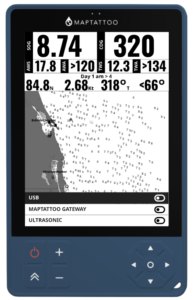
Connecting MAPTATTOO to your laptop #

  • (1) Select the USB entry in the menu and press the “Center” key
  • At this point, you can connect MAPTATTOO to your computer and start exchanging files. Make sure to insert the USB cable all the way, it can be hard to insert at first.
  • MAPTATTOO should appear just like a thumb drive on your laptop
  • When you are done downloading/uploading files, disconnect MAPTATTOO cleanly (Eject from the laptop)

Connecting MAPTATTOO PRO to your MAPTATTOO Bluetooth Gateway #

If you own a MAPTATTOO PRO and a Bluetooth Gateway is detected, you will see an entry in the connection menu.

  • (1) Select the Gateway entry and press the “Center” key
  • You will have to wait a few seconds (sometimes up to 30 seconds) until the connection is established, at which point, you can safely close the menu

Please refer to the gateway documentation page.

Connecting MAPTATTOO PRO to your Calypso Bluetooth Wind Meter #

If you own a MAPTATTOO PRO and a Calypso / Ultrasonic device is detected, you will see an entry in the connection menu.

  • (1) Select the Calypso / Ultrasonic entry and press the “Center” key
  • You will have to wait a few seconds (sometimes up to 30 seconds) until the connection is established, at which point, you can safely close the menu
Still stuck? How can we help?

How can we help?

Updated on June 7, 2026
Tide & Current PredictionsPreparing and loading Routes at home

Powered by BetterDocs

Leave a Reply

Your email address will not be published. Required fields are marked *

Table of Contents
  • Connecting MAPTATTOO to your laptop
  • Connecting MAPTATTOO PRO to your MAPTATTOO Bluetooth Gateway
  • Connecting MAPTATTOO PRO to your Calypso Bluetooth Wind Meter

Join Our Newsletter

Stay up to date with our next updates and read interesting stories from fellow sailors, kayakers, and explorers.

Customer Care

  • Contact Us
  • Warranty and Refund Policy
  • Shipping Policy
  • Privacy Policy
  • End-User License Agreement

About Us

The World's first E-Ink Marine GPS Tablet, designed for small boats.


@2024, MAPTATTOO LLC

© 2026, MAPTATTOO LLC
Privacy PolicyBuilt with Storefront & WooCommerce.
  • My Account
  • Search
  • Cart 0